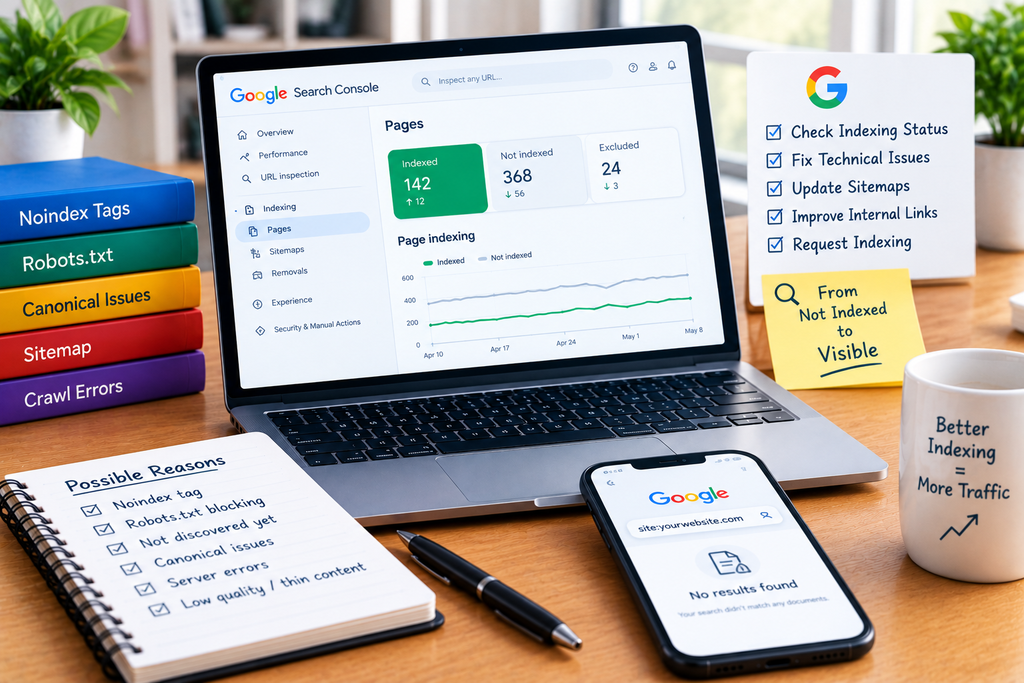
Publishing a new page does not automatically mean Google will index it. Google first has to discover the URL, crawl the page, process its content, determine whether it should be indexed, and then decide which version of the page belongs in its index.
If your website pages are not appearing in Google, the problem could be technical, such as a noindex directive, robots.txt restriction, server error, or incorrect canonical URL. But it can also happen because Google has discovered the page but has not considered it useful or necessary to add to the index.
Google itself states that even pages meeting its minimum technical requirements are not guaranteed to be indexed.
The good news is that you can usually identify the reason through Google Search Console and fix the underlying problem.
Start With Google Search Console URL Inspection
Before changing anything on your website, inspect the exact URL in Google Search Console.
Google’s URL Inspection Tool shows what Google knows about a specific URL, including whether it is indexed, whether Google can crawl it, the selected canonical URL, and certain indexing problems.
Enter the complete page URL into URL Inspection and check:
- Is the URL indexed?
- Is crawling allowed?
- Is indexing allowed?
- When was the page last crawled?
- Which canonical URL did Google select?
- Is Google seeing the same content you see?
- Is there a crawl or server error?
- Does the live test consider the page indexable?
If the report says “URL is not on Google,” expand the Page indexing section. Google provides the reason it did not index the URL.
Do not immediately request indexing without understanding the problem. A request only asks Google to crawl the page again; it does not force Google to index it.
1. Your Page Has a noindex Tag
One of the simplest reasons a page does not appear in Google is a noindex directive.
For example:
<meta name=”robots” content=”noindex”>
This tells search engines not to include the page in their search results.
Google explains that noindex can be implemented through an HTML robots meta tag or an HTTP X-Robots-Tag response header.
This problem is particularly common on WordPress websites when:
- A page was accidentally marked “discourage search engines.”
- An SEO plugin added noindex.
- A staging setting was carried over to the live website.
- A category, tag, author, or custom post type was configured incorrectly.
- A developer added noindex during development and forgot to remove it.
How to fix it
Inspect the page and check whether Google reports “URL is not available to Google” because of noindex.
Then check your page source or SEO plugin settings and remove the directive if the page should appear in search.
After removing it, use the live URL test in Search Console and request indexing.
An important detail: Google must be able to crawl the page to see a noindex directive. If robots.txt blocks the crawler first, Google may never see the noindex rule.
2. Robots.txt Is Blocking Googlebot
Robots.txt and noindex are not the same thing.
A robots.txt file controls whether crawlers can access particular URLs. Google specifically says robots.txt is not the correct mechanism for keeping a page out of Google’s index.
For example:
User-agent: *
Disallow: /blog/
This tells crawlers not to crawl URLs under /blog/.
If your important blog pages are accidentally blocked, Google may not be able to crawl and understand them.
How to fix it
Open:
https://example.com/robots.txt
Look for rules affecting the URL that is not being indexed.
Also check the robots.txt status inside Search Console and URL Inspection.
If you actually want a page removed from Google, don’t simply block it with robots.txt. Google recommends using noindex when you want a crawlable page excluded from search.
3. Google Has Not Discovered the Page Yet
Sometimes there is nothing technically wrong with the page. Google simply does not know the URL exists.
Google discovers pages through links, sitemaps, and other sources. A new article that has no internal links pointing to it can be much harder for Google to discover.
This is why your site’s internal linking structure matters.
For example, if you publish:
example.com/blog/how-to-fix-indexing
but no category page, homepage, blog post, navigation element, or other crawlable page links to it, you are giving Google fewer ways to discover that URL.
Google recommends using crawlable links and sitemaps to help its systems discover pages.
How to fix it
Add relevant internal links from pages that Google already knows about.
For example:
- Link from your main blog category.
- Link from related articles.
- Link from a relevant service page.
- Add important pages to your navigation where appropriate.
- Include canonical URLs in your XML sitemap.
For deeper optimization, also review Why Is Google Ranking the Wrong Page for My Target Keyword? because indexing and page-selection problems can overlap when multiple pages target similar topics.
4. Your Sitemap Is Missing or Incorrect
An XML sitemap is another important way to tell Google about URLs you want it to discover.
However, a sitemap is not a guarantee of indexing.
Google describes sitemaps as a way to provide information about the URLs you consider important. It generally recommends including the canonical URLs that you want to appear in search.
Your sitemap should not be filled with URLs such as:
- Redirected URLs
- URLs returning errors
- Duplicate URLs
- Pages marked noindex
- Parameter variations you do not want indexed
- Thin or unnecessary pages
How to fix it
Check your sitemap, usually something similar to:
https://example.com/sitemap.xml
Then submit it through Google Search Console.
Make sure important pages are included and that the sitemap contains the preferred canonical URLs.
Google currently recommends splitting large sitemaps when they exceed 50 MB uncompressed or 50,000 URLs.
5. Search Console Says “Discovered – Currently Not Indexed”
This status means Google knows the URL exists but has not indexed it.
It does not automatically mean your website has a technical error.
Google’s indexing documentation specifically notes that not every known URL needs to be indexed. Duplicate, low-value, alternative, or otherwise unnecessary URLs may legitimately remain outside the index.
If an important article remains in this state, investigate:
- Internal links
- Sitemap inclusion
- Page quality
- Duplicate content
- Canonical signals
- Overall site structure
- Whether the page provides unique value
Don’t solve this problem simply by submitting the same URL for indexing repeatedly.
6. Search Console Says “Crawled – Currently Not Indexed”
This status is different.
Google has already crawled the page but has not included it in the index.
That means you should look beyond basic crawl accessibility.
Ask yourself:
Does this page deserve to exist as a separate search result?
For example, suppose your website has five articles:
- What Is SEO?
- What Is Search Engine Optimization?
- SEO Basics Explained
- Beginner SEO Guide
- How SEO Works
If all five pages provide almost the same information, Google may determine that some are redundant.
Instead of publishing multiple pages targeting nearly identical search intent, create fewer, stronger pages with clearly differentiated purposes.
Google’s indexing process analyzes page content and can cluster similar pages and select a canonical representative.
7. Google Selected a Different Canonical URL
Canonicalization is another major reason an apparently valid page may not be indexed.
Imagine you have:
example.com/seo-guide
example.com/seo-guide/
example.com/blog/seo-guide
example.com/seo-guide?source=facebook
If Google considers multiple URLs substantially similar, it may group them together and choose one canonical version.
Google explains that its systems cluster duplicate or very similar pages and select the URL it considers the most representative.
You can check Google’s selected canonical through URL Inspection.
If Google selects another URL as canonical, compare the two pages and check:
- rel=”canonical”
- Internal links
- Sitemap entries
- Redirects
- Content similarity
- URL structure
- HTTP/HTTPS versions
For Google’s detailed explanation, see the Google Canonicalization Documentation.
Do not assume that adding a canonical tag automatically forces Google to use it. Canonicalization is a signal, not an absolute command.
8. The Page Returns the Wrong HTTP Status
Google’s minimum technical requirements include a page that works and returns an HTTP 200 success status when it is intended to be indexed.
Problems can occur when a page returns:
- 404 Not Found
- 410 Gone
- 500 Server Error
- 503 Service Unavailable
- Redirect responses
- Authentication requirements
A page that visually appears to work in your browser may still behave differently for crawlers or return an unexpected response.
Check the URL in Search Console and review the server response.
If the page has been permanently moved, use an appropriate 301/308 redirect to the new URL rather than trying to index the old URL.
9. Google Cannot Properly See Your JavaScript Content
Modern websites often depend heavily on JavaScript.
Google can render JavaScript, but rendering still introduces another stage between crawling and understanding the page. Google explains that its crawler renders pages and executes JavaScript using a recent version of Chrome.
Problems can occur when:
- Important content is only loaded after a user interaction.
- API requests fail for Googlebot.
- JavaScript generates errors.
- The server returns different content.
- Important links are not crawlable.
- The initial HTML contains little useful information.
Use URL Inspection’s rendered-page information to compare what Google can access with what a normal visitor sees.
If your main article content exists in the initial HTML, you reduce the risk of Google missing important information during rendering.
10. The Page Is Technically Indexable but Provides Little Unique Value
This is the problem many website owners overlook.
A page can be:
- Crawlable
- Accessible
- HTTP 200
- Included in a sitemap
- Internally linked
- Free from noindex
…and still not get indexed.
Google’s documentation explains that indexing is not guaranteed even when the minimum technical requirements are satisfied. Content quality and other indexing signals also matter.
Before requesting indexing again, improve the actual page.
Ask:
- Does it answer a specific search intent?
- Is the information substantially useful?
- Does it provide information not already repeated elsewhere on the site?
- Is the page complete enough to satisfy the searcher?
- Does it contain unnecessary repetition?
- Is it primarily written for users rather than search engines?
- Does it deserve to rank independently from similar pages?
If the answer is no, improving the content may be more effective than repeatedly requesting indexing.
A Practical Step-by-Step Indexing Fix
If an important page is not indexed, use this process:
Step 1: Inspect the URL
Open Search Console → URL Inspection and enter the exact URL.
Step 2: Check the indexing reason
Look for messages such as:
- URL is not on Google
- Crawled – currently not indexed
- Discovered – currently not indexed
- URL marked noindex
- Blocked by robots.txt
- Duplicate without user-selected canonical
- Alternate page with proper canonical
- Page with redirect
- Server error
- Soft 404
Step 3: Test the live URL
Use the live test to determine whether the problem still exists on the current version of the page. Google notes that the live test and indexed data serve different purposes, so compare both when troubleshooting.
Step 4: Fix the actual problem
Do not submit a URL repeatedly without making changes.
Remove an accidental noindex, correct robots.txt, repair server errors, improve internal links, fix canonicalization, or strengthen the content depending on the diagnosis.
Step 5: Check the sitemap
Make sure the correct canonical URL is included.
Step 6: Request indexing
Once the page is genuinely fixed, use Request Indexing in URL Inspection.
Google says individual indexing requests are subject to quotas and do not guarantee inclusion. Crawling can take days or longer depending on the situation.
What If Google Still Does Not Index the Page?
If the technical checks are clean and the page remains unindexed, stop treating indexing as a button you need to press harder.
Review the page and the website as a whole.
Look for:
- Duplicate or near-duplicate pages
- Very similar articles targeting the same query
- Weak internal linking
- Pages with little unique information
- Large numbers of unnecessary URLs
- Poor site architecture
- Canonical conflicts
- Low-quality or incomplete content
- Pages that do not provide a clear reason to exist separately
Google does not promise to index every URL it discovers. Its own documentation says that the goal should not be 100% index coverage; what matters is that the important canonical pages are indexed.
Final Takeaway
When your website pages are not being indexed by Google, don’t immediately assume that Google has a crawling problem.
Start with URL Inspection and identify exactly what Google sees.
Then work through the problem in this order:
- Check whether Google knows the URL.
- Check robots.txt access.
- Check for accidental noindex.
- Confirm the page returns a successful HTTP response.
- Check the canonical URL.
- Make sure the page is included in the sitemap.
- Add useful internal links.
- Check whether Google can see the important content.
- Compare the page against similar or duplicate URLs.
- Improve the page if it provides little unique value.
- Request indexing after the underlying issue has been fixed.
The key point is simple: getting a URL indexed is not just about submitting it to Google. Google needs to discover, crawl, understand, and consider the page useful enough to include in its index. A systematic diagnosis through Search Console is far more effective than repeatedly clicking “Request Indexing.”
FAQs
1. Why is my new website page not indexed by Google?
A new page may not be indexed because Google has not discovered it yet, cannot crawl it, has been instructed not to index it, considers it a duplicate, or has not determined that it should be included in the index. Start with URL Inspection in Google Search Console to identify the specific reason.
2. How long does Google take to index a new page?
There is no fixed indexing time. Google says crawling can take anywhere from a few days to a few weeks, and requesting indexing does not guarantee immediate or eventual inclusion.
3. Does submitting a sitemap guarantee Google will index my pages?
No. A sitemap helps Google discover URLs and communicates which URLs you consider important, but Google does not guarantee that every submitted URL will be crawled or indexed.
4. What is the difference between robots.txt and noindex?
Robots.txt controls crawler access, while noindex tells Google not to include a crawlable page in search results. If you want Google to understand and obey a noindex directive, the page must be accessible to the crawler.
5. Why does Google say “Crawled – currently not indexed”?
It means Google has crawled the page but has not included it in its index. The reason may involve duplication, content quality, canonicalization, or other indexing decisions. Review the page’s unique value and compare it with similar URLs on your site.
6. Should I keep requesting indexing if Google does not index my page?
No. Request indexing after fixing the underlying problem. Repeated requests do not guarantee faster indexing, and Google recommends addressing the reason the URL was not indexed rather than relying on repeated submission.
Let’s Talk About Your Business
Not sure which approach is right for your business? Get a free consultation with our team.